Got feedback? Additional questions? Just want to have a friendly chat?
Get in touch!
What is turn analysis?
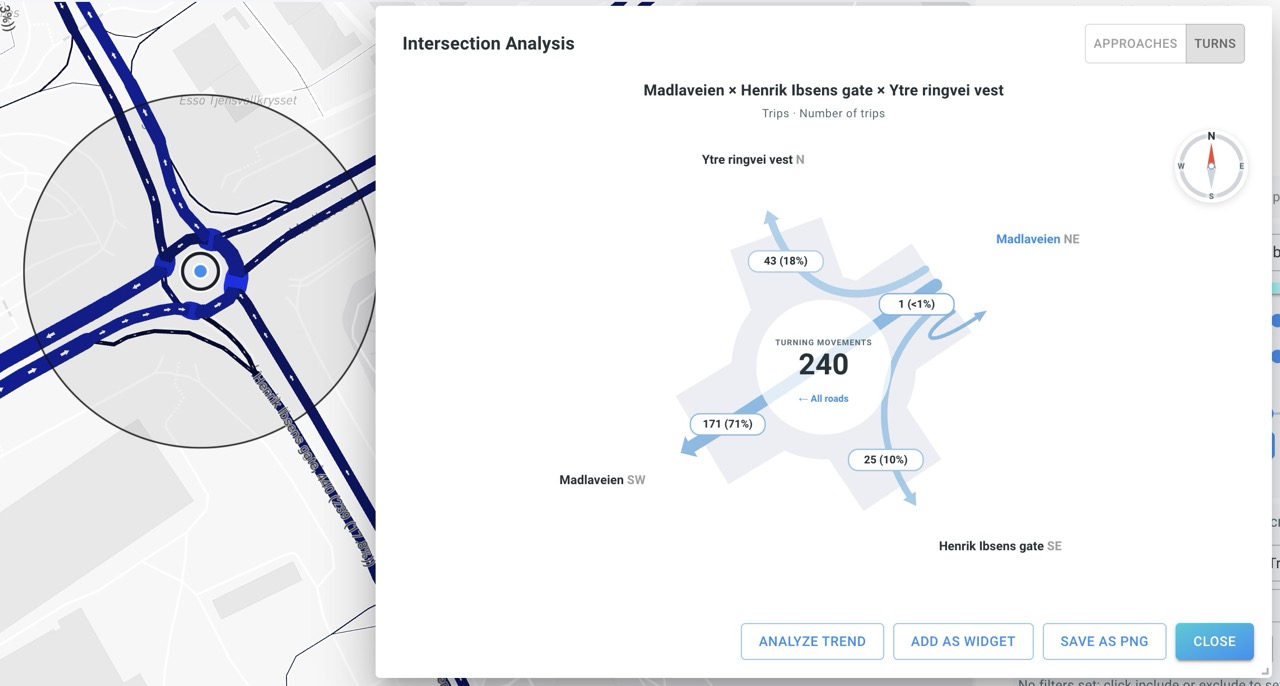
Turns shows how trips move through an intersection: which incoming road each trip comes from and which outgoing road it follows. It allows you to distinguish straight-through, left-turn, right-turn and other movements, including at roundabouts.
Unlike Approaches, which can display values on individual road segments, Turns requires the sequence of road segments travelled by each trip. Therefore, turn analysis is available only for Movement Path data linked to a graph-enabled road network.
Exploring turning movements
-
Open Intersection Analysis on a Movement Path road-network layer as described in Performing intersection analysis.
-
In the dialog header, select Turns instead of Approaches.
-
Initially, the diagram shows an overview of all incoming roads, with their possible outgoing movements.
-
Hover over a road or a movement to preview its turns.
-
Click an incoming road name (or a corresponding turn arrow) to focus on the trips arriving from that road.
-
Click the selected road again to return to the all-roads overview.
In the selected-road view, the curved arrows show the outgoing roads that the matching trips take. Each movement shows a trip count and a percentage. Arrow widths make the dominant movements easy to identify.
Understanding counts and percentages
-
The center count in the selected-road view is the total number of matching turning movements from that incoming road.
-
Each outgoing arrow shows how many of those trips continue to that exit.
-
The percentage is the share of the selected incoming road’s turning movements that take that exit. For example, 60 out of 100 trips turning right appears as
60 (60%). -
In the all-roads overview, the individual movement percentages are calculated relative to their own incoming road, not to the sum of trips across the entire intersection.
An arrow with 1 (<1%) represents a small but non-zero share; the application does not round it down to a misleading zero percent.
| A turn is determined from a connected sequence in the road-network graph. The analysis uses the actual trip paths and avoids counting unrelated detours through another approach as a direct turn. The result depends on the available trip data, its filters and the selected time period. |
Analyzing turning movements over time
Choose Analyze Trend from the dialog to open Advanced (Categorized) Trend Analytics. The platform creates separate categories for the matching turn movements, so you can compare their volume or supported numeric metrics over time.
-
When all incoming roads are shown, the trend includes turning movements across the intersection.
-
When one incoming road is selected, the trend focuses on the outgoing movements from that road.
-
The current time selection, applicable filters and selected metric are used when creating the trend configuration.
The trend chart uses stacked bars for trip counts and line-based visualization for applicable numeric metrics. For very complex intersections, select a single incoming road to reduce the number of series.
| Analyze Trend is unavailable when the active Movement Path filter already contains an asset-route filter, when the selected metric cannot be represented in Trend Analytics, or when the intersection has too many movement categories (more than 48). The tooltip on the disabled button provides the reason. |
Saving and sharing turn analysis
-
Add as widget adds the current Turns analysis to the dashboard. The widget remembers the selected intersection, the Turns mode and any selected incoming road. An overview can also be saved without selecting a road.
-
Save as PNG exports the currently displayed turning-movement diagram.
-
A saved widget shows the configured Approaches or Turns mode directly; the mode switch remains in the Visual Analytics dialog.
| If no turning movements are displayed, check that the road graph is connected and correctly directed, that the data set is Movement Path (not Geometry or Time Series), and that the selected time range and filters include trips crossing the junction. A pre-existing asset-route filter can also prevent turn analysis; remove it before retrying. |
Got feedback? Additional questions? Just want to have a friendly chat?
Get in touch!