Got feedback? Additional questions? Just want to have a friendly chat?
Get in touch!
Prerequisites
Before starting, ensure that the Visual Analytics project contains a visible Geometry, Time Series or Movement Path road-network layer with a connected graph. See Configuring your data set for intersection analysis.
Selecting an intersection
-
Open the Visual Analytics page and display the road-network layer that you want to analyze.
-
Activate Intersection Analysis from the controls for that layer.
-
Move the pointer over the road network. The nearest intersection or roundabout is identified, and its diagram is shown.
-
Click the intersection to pin the selection. Click it again to release it and return to following the pointer.
You can use Shift + mouse wheel to adjust the analysis radius around the intersection. A suitable radius is useful for complex junctions and roundabouts where the connecting roads are spread over a larger area.
The diagram follows the map’s orientation; its compass can be used to return the map to north-up. The dialog can also be moved and resized to keep the relevant map area visible.
Reading the Approaches diagram
In the Approaches view:
-
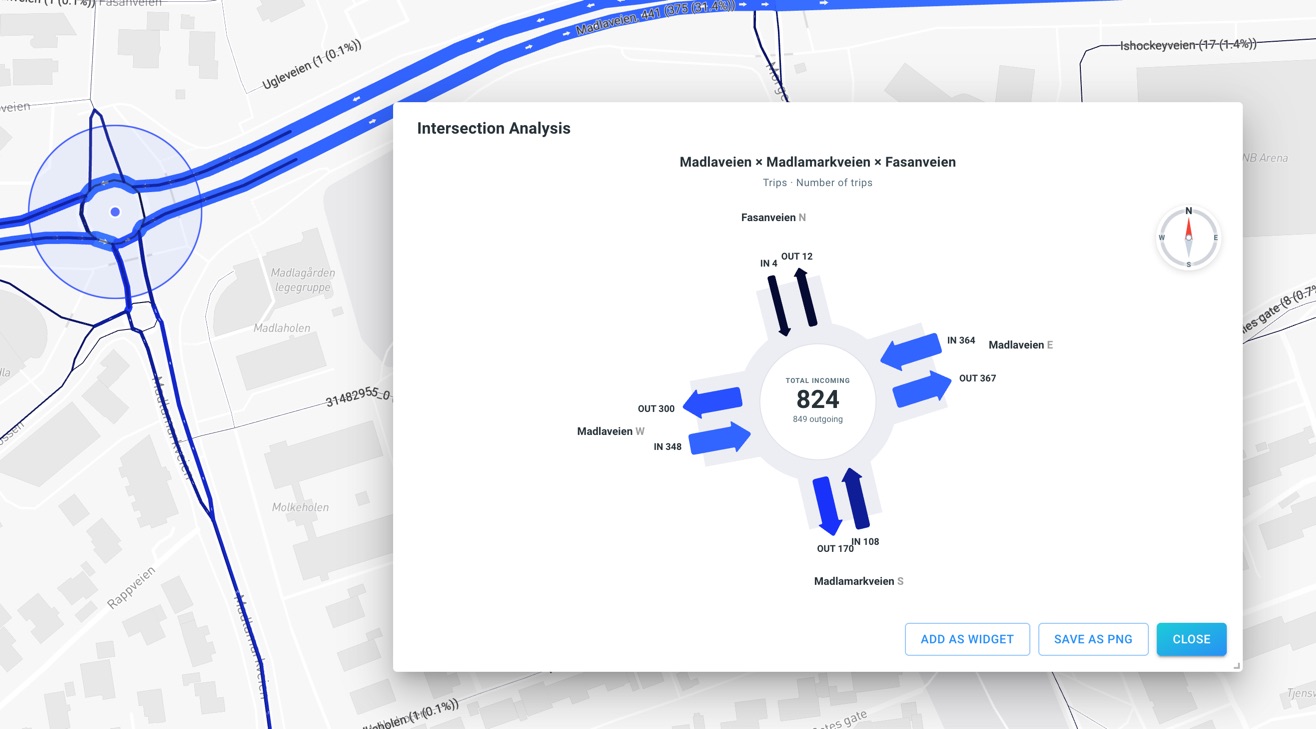
Each connected road is labeled with its street name (where available) and compass direction.
-
Arrows pointing towards the center represent incoming traffic; arrows pointing away from the center represent outgoing traffic.
-
The numbers beside the arrows correspond to the values shown for the road segments in the active layer.
-
Arrow colors follow the map styling. For count-based visualization, arrow width indicates relative volume; thicker arrows indicate higher counts.
-
The center summarizes the total incoming value when a count is being displayed.
| The displayed metric depends on the layer’s Style by property and spatial aggregation. It may be a number of trips or records, or a numeric property such as average speed. For a non-count metric, interpret the displayed labels as property values, not as traffic volumes. |
Filtering the intersection analysis
To compare particular periods, vehicle classes or other subsets:
-
Configure the desired time range on the Visual Analytics page, if your data set includes temporal data.
-
Apply the relevant filters to the road-network or Movement Path layer.
-
If required, change Style by or its aggregation in the layer’s style controls.
-
Revisit the selected intersection to inspect the updated values.
For example, you can compare all trips with only heavy-vehicle trips, or analyze how the approach counts change between time periods.
Analyze trends, create widgets and export
The bottom of the Intersection Analysis dialog offers these actions:
-
Analyze Trend opens Advanced (Categorized) Trend Analytics with a series for each incoming and outgoing approach, enabling comparison over time. This action requires Time Series or Movement Path data; it is not supported for static Geometry data sets.
-
Add as widget saves the selected intersection and the current Approaches presentation as a dashboard widget.
-
Save as PNG exports an image of the current diagram.
For Trend Analysis, the selected metric must have a supported histogram aggregation, and the selected time range must be valid. Some map styling modes do not have a direct Trend Analytics equivalent; in that case, the button is disabled and its tooltip explains why.
| To analyze individual turning movements rather than incoming and outgoing segment values, switch to Turns. This is available only for Movement Path data. See Analyzing turns at intersections. |
Got feedback? Additional questions? Just want to have a friendly chat?
Get in touch!