Got feedback? Additional questions? Just want to have a friendly chat?
Get in touch!
Introduction
Once a data set is attached to a project, you are not necessarily locked in to that specific data set forever. The platform offers two complementary features to help you manage which data is shown in a project:
-
Replacing a data set: swap the data set attached to a project for a compatible one, while keeping all widgets, styling, and saved bookmarks intact.
-
Managed data sets: a layer of indirection that lets you change the underlying data in a single place and have that change propagate automatically to every project that uses the managed data set.
Both features rely on the concept of compatible data sets, which is explained first.
Compatible data sets
Two data sets are compatible when they share the same schema — that is, they define exactly the same data and metadata properties (the same property names, types, and roles such as identifier, longitude, latitude, and timestamp).
A typical example is a data set you refresh on a daily or weekly basis. Each refresh produces a new data set containing data for a different time period, but the structure of the files stays the same: the same columns, the same property names, the same types. As long as that structure is consistent, all those data sets are compatible with each other.
Ensuring compatibility
Because compatibility depends entirely on matching schemas, it is important to be deliberate about how you define the properties of a new data set. There are a few ways to guarantee two data sets end up with the same schema:
-
Initialize a data set from an existing one: when creating a new data set, the Initialize from Existing tab lets you copy the full configuration — including all data and metadata properties — from an existing data set. The new data set starts out as an exact structural copy, so it is immediately compatible with the original.
-
Use the same data properties file: you can store a data properties file alongside your data files and upload it every time you create a new data set. Because all data sets are configured from the same file, their schemas are guaranteed to match. This approach works both through the UI and through the REST API, making it easy to automate.
-
Copy the structure from another data set: when configuring the data properties of a new data set, the UI allows you to copy the structure from an existing data set.
Replacing a data set in a project
When a project has a data set attached to it, you can replace that attachment with any compatible data set without rebuilding the project from scratch. All widgets, filters, styling, and saved bookmarks are preserved because the platform can map every setting across: the schemas are identical, so everything that referred to a property in the old data set still works with the new one.
To replace a data set, open the project’s data management panel and use the replace action next to the attachment you want to change. If the replace button is grayed out, it means there are currently no compatible data sets available to switch to.
|
Use relative time ranges to avoid empty visualizations after a replace
When you replace a data set, any absolute time range saved in your project (for example, "from 1 January 2024 until 31 January 2024") will remain unchanged. If the new data set covers a completely different period, those absolute ranges will simply return no data. To avoid this, prefer relative time ranges (such as "last 7 days" or "last 30 days") whenever possible. Relative ranges automatically adjust to whatever data the active data set contains, so your visualizations stay meaningful after every replacement. |
Managed data sets
A managed data set is a wrapper around a regular data set. It has its own name and description, and it can be attached to projects just like any other data set. From the perspective of a project, a managed data set behaves exactly like the source data set it wraps — the same properties, the same data, the same analytics.
The key difference is that a managed data set introduces a level of indirection: instead of pointing a project directly at a data set, you point it at a managed data set, which in turn points at the source. This indirection is what makes managed data sets powerful.
Creating a managed data set
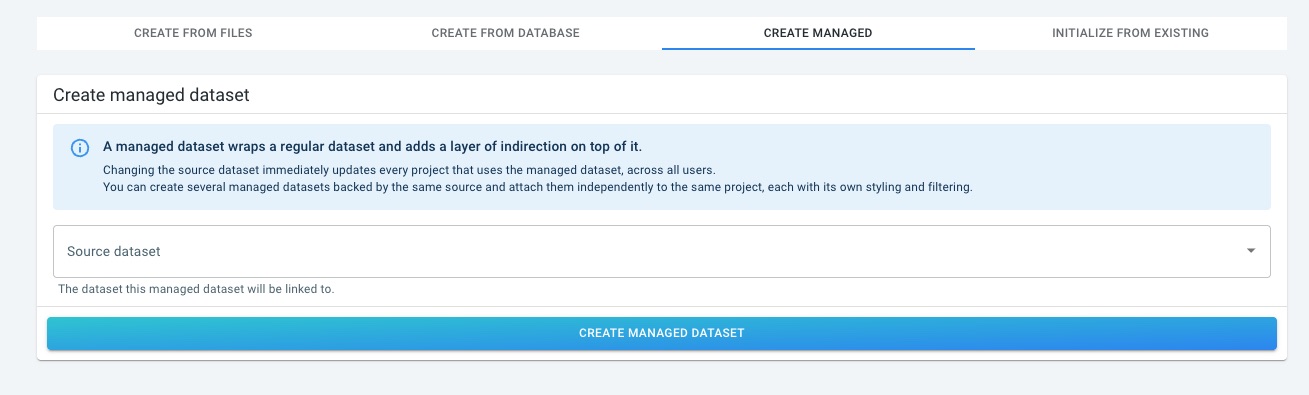
Managed data sets are created from the data sets overview by clicking the + CREATE NEW DATA SET button. The creation dialog offers four tabs:
-
Create from Files: create a file-based data set by uploading your data files.
-
Create from Database: connect the platform to an external database to create a database-backed data set.
-
Create Managed: create a managed data set by selecting an existing data set as its source.
-
Initialize from Existing: create a new data set that inherits its configuration from an existing one.
Figure 1. The Create Managed tab when creating a new data set
To create a managed data set, open the Create Managed tab, select the source data set from the dropdown, and confirm. You can give the managed data set its own name and description to make it easy to identify in the data sets overview and in the project attachment panel.
Attaching a managed data set to a project
Once created, a managed data set appears in the data sets overview alongside all other data sets and can be attached to a project in the same way. It can also be attached to multiple projects simultaneously — each project gets its own independent attachment with its own styling, filtering, and configuration.
Update once, reflect everywhere
The primary reason to use managed data sets is to decouple projects from specific data sets, so that updating the underlying data does not require visiting every project.
When you update a managed data set by pointing it to a new source (a compatible data set with fresher data, for example), every project that has that managed data set attached will automatically start showing data from the new source. There is no need to open each project and perform a manual replacement — the change propagates instantly to all users and all projects.
This is especially valuable in recurring workflows where data is refreshed regularly: create a new data set for each period, then update the managed data set once to point at the latest one.
Attaching the same source data set multiple times
Without managed data sets, each data set can only be attached once to a given project. Managed data sets remove this restriction.
Because a managed data set is an independent wrapper, you can create multiple managed data sets that all point to the same source, and attach each of them separately to the same project. Each attachment has its own styling and filtering, so you can, for example, show the same underlying data through two differently styled layers in a single project.
|
Combining replacement and managed data sets
Managed data sets and the replace feature work well together. If you need to update the source of a managed data set, you can first upload a new data set and then point the managed data set at it. Because the new data set was initialized from the existing one, it is compatible, and the replacement goes through without any loss of configuration. |
A read-only, input-agnostic view of data sets
Managed data sets are read-only. With the exception of their name and description, neither their properties nor their contents can be modified. All characteristics are inherited from the source data set they represent.
Managed data sets also abstract away the underlying data input details from end users. Input files and processing information are not exposed within the managed data set. As a result, any data management tasks (such as uploading additional input files) must always be performed directly on the source data set.
Got feedback? Additional questions? Just want to have a friendly chat?
Get in touch!